

Creating a New Folder
- Select your Collection from the sidebar.
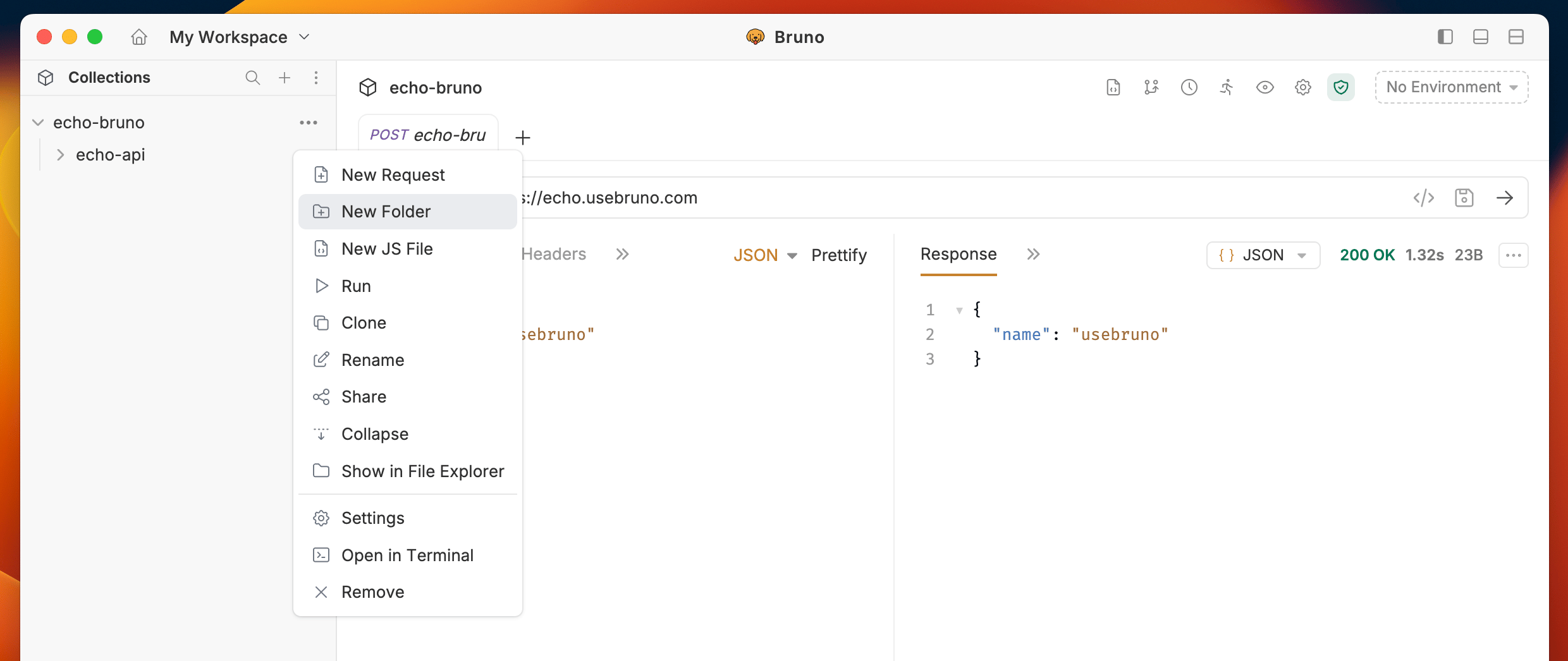
- Click on the
···button. - Select
New Folderfrom the dropdown menu.
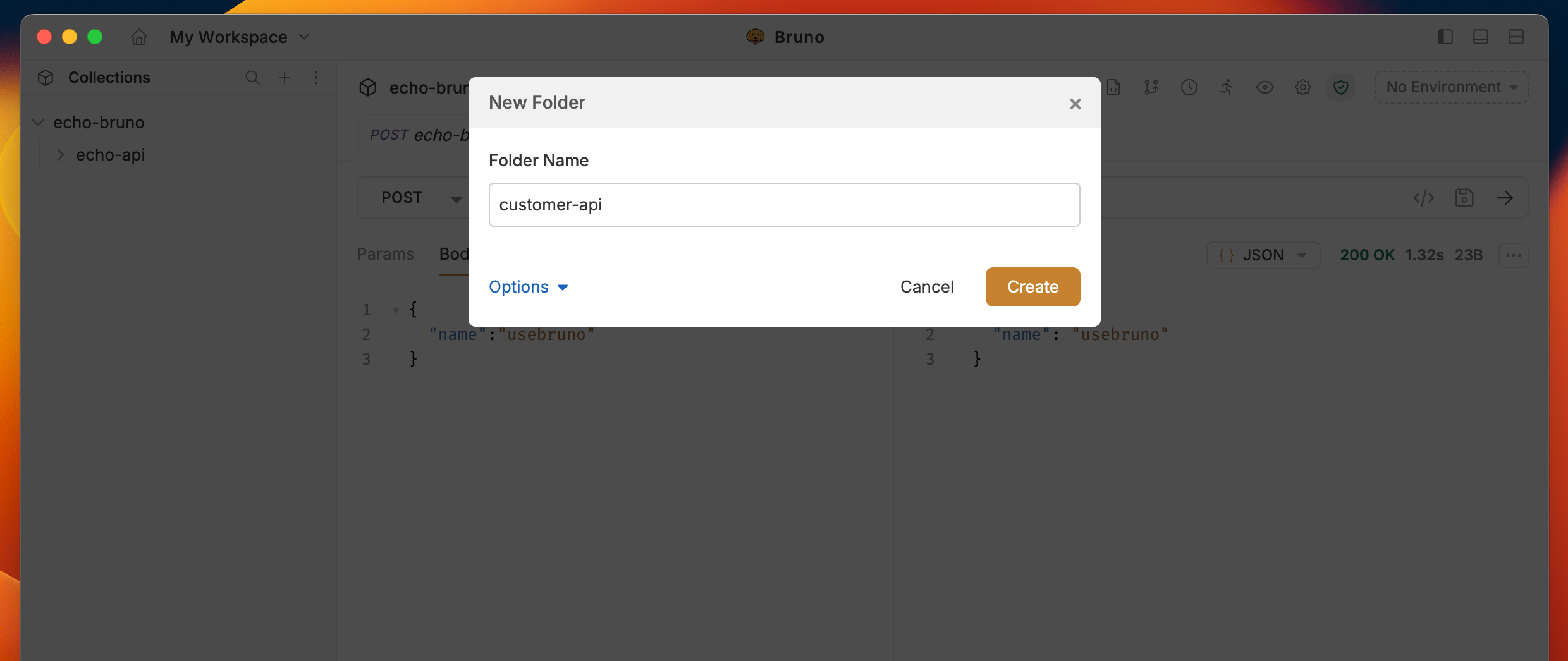
- Enter a name for your folder.
- Click
Createto finish.
Ignore folders
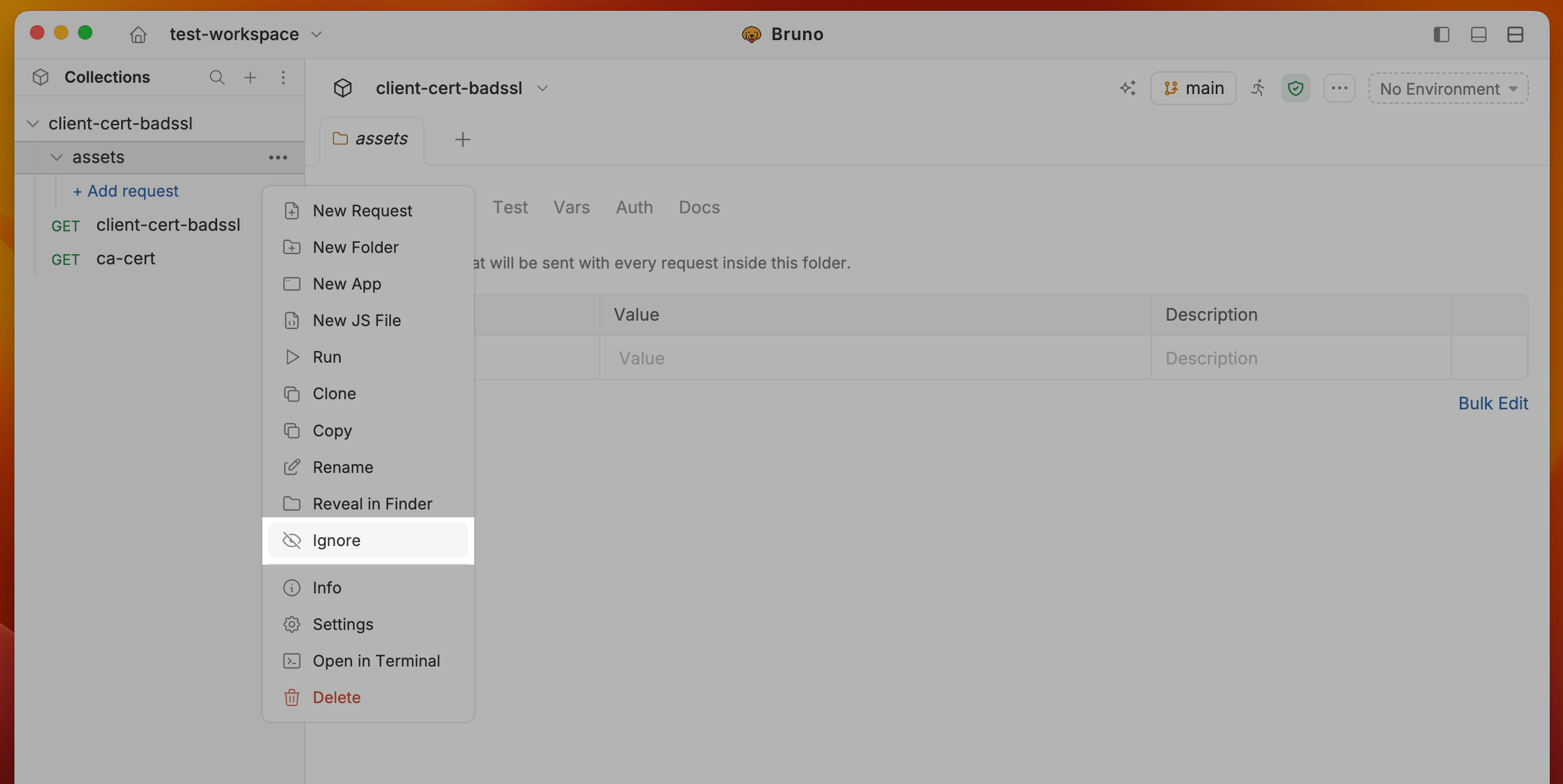
You can hide folders from a collection without deleting them. Ignoring a folder adds it to the collection’s ignore config and removes it from the sidebar. This is useful for folders that should stay on disk (for example assets, fixtures, or generated files) but should not appear as part of the runnable collection.- Right-click a folder in the collection sidebar (or use the
···menu). - Select Ignore.
- Bruno adds the folder to the collection ignore config and the folder disappears from the sidebar.
You no longer need to hand-edit the collection config file to ignore a folder. Use the sidebar menu instead. Bruno updates
opencollection.yml or bruno.json for you.Config after ignoring a folder
After you ignore a folder such asassets from the UI, Bruno appends it to the ignore list. Existing entries like node_modules and .git stay unchanged.
- OpenCollection YAML
- Bru Collections
opencollection.yml
assets is the folder ignored from the sidebar. The folder remains on disk. It is only hidden from the collection tree.
Custom Folder Names
You can use any characters in your folder names, including special characters like/, [, ], *, etc. Bruno automatically handles filesystem compatibility by replacing unsupported characters with - in the filenames while preserving your original folder name.
How to View or Customize Filesystem Names
- Select Show Filesystem Name.
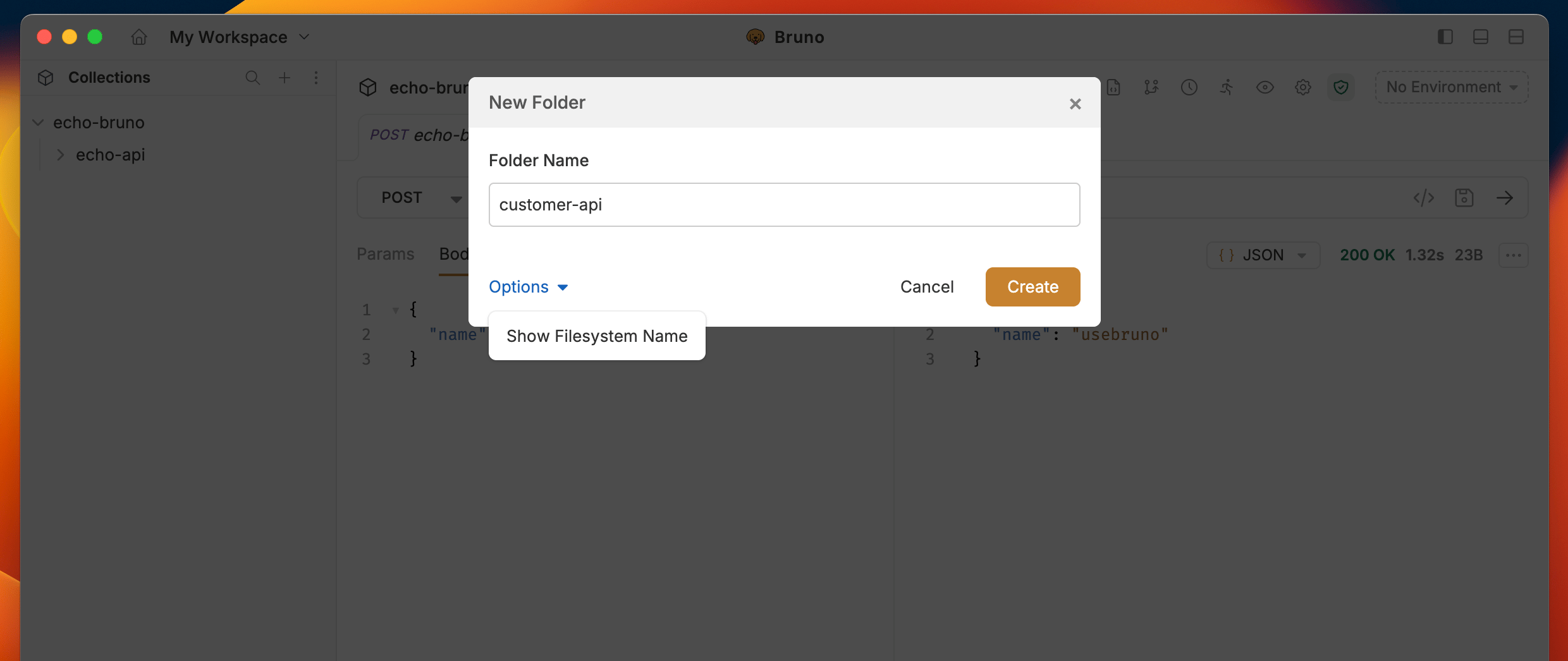
- You can now see how your folder name is stored on the filesystem.
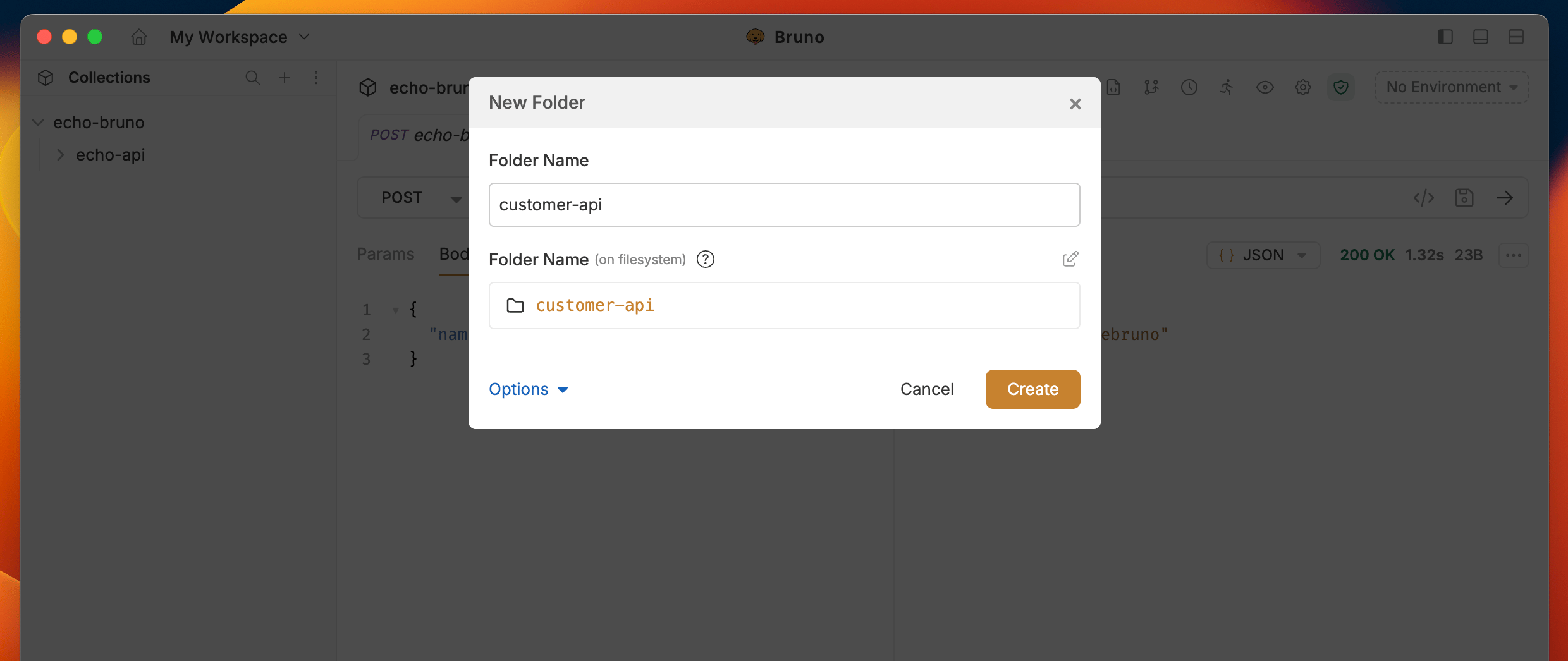
- (Optional) Click the edit icon to customize the filesystem name while keeping your display name intact.
- Create more descriptive folder organization.
- Use special characters freely.
- Maintain filesystem compatibility automatically.
- Keep your collection structure clean and organized.