

Cloning, fetching, and pulling are available in the free version starting from Bruno 3.0.0. Choosing which remote and branch to pull from requires Pro or Ultimate.
Cloning Collections from GitHub
To clone a collection from GitHub into Bruno, you need to have an existing collection repository hosted on GitHub. For example, you can use this Bruno repository and follow the steps below.- Launch Bruno and click the Import Collection button in the Quick Actions section on the Overview page. Alternatively, click the + icon in the sidebar and select Import collection.
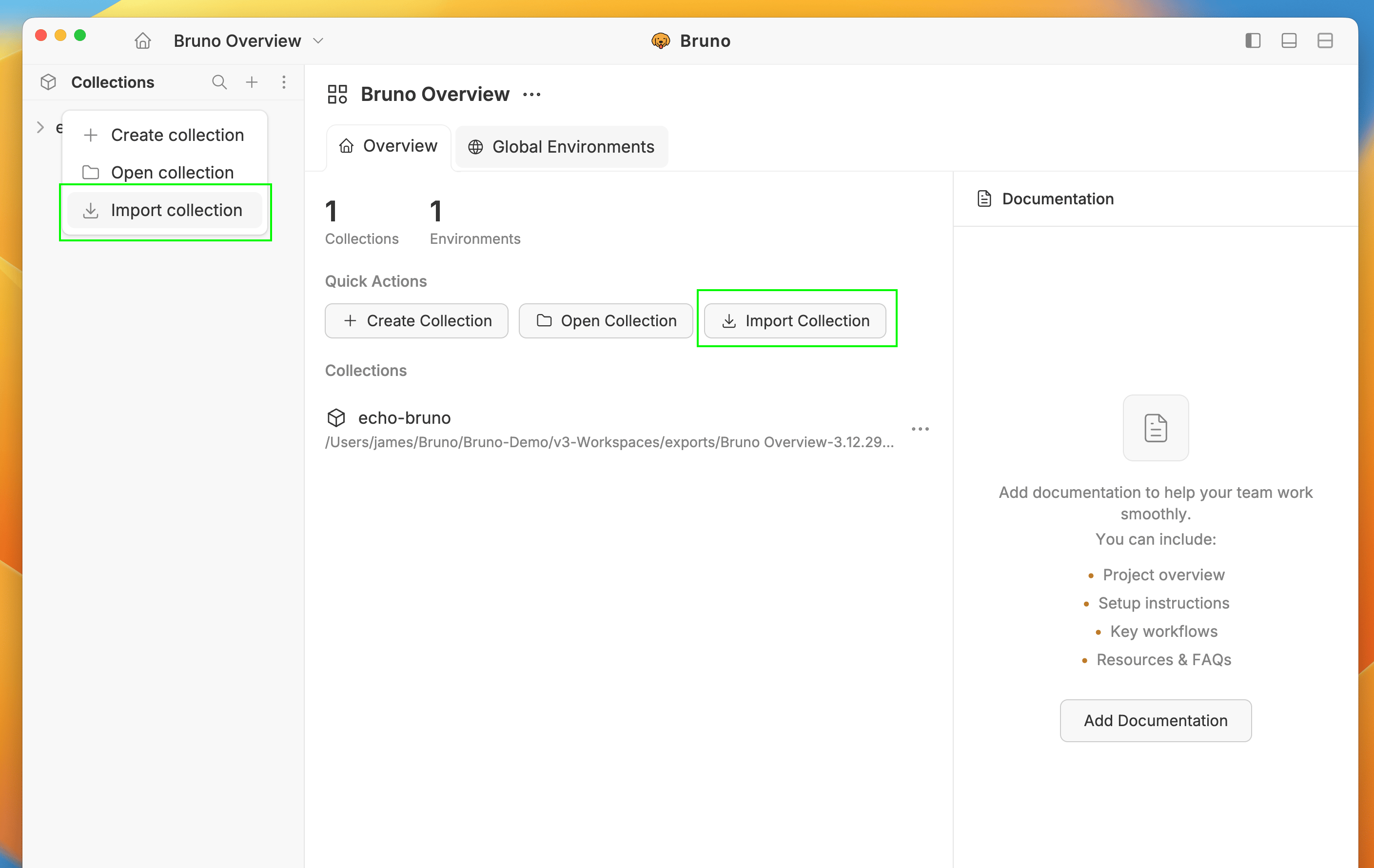
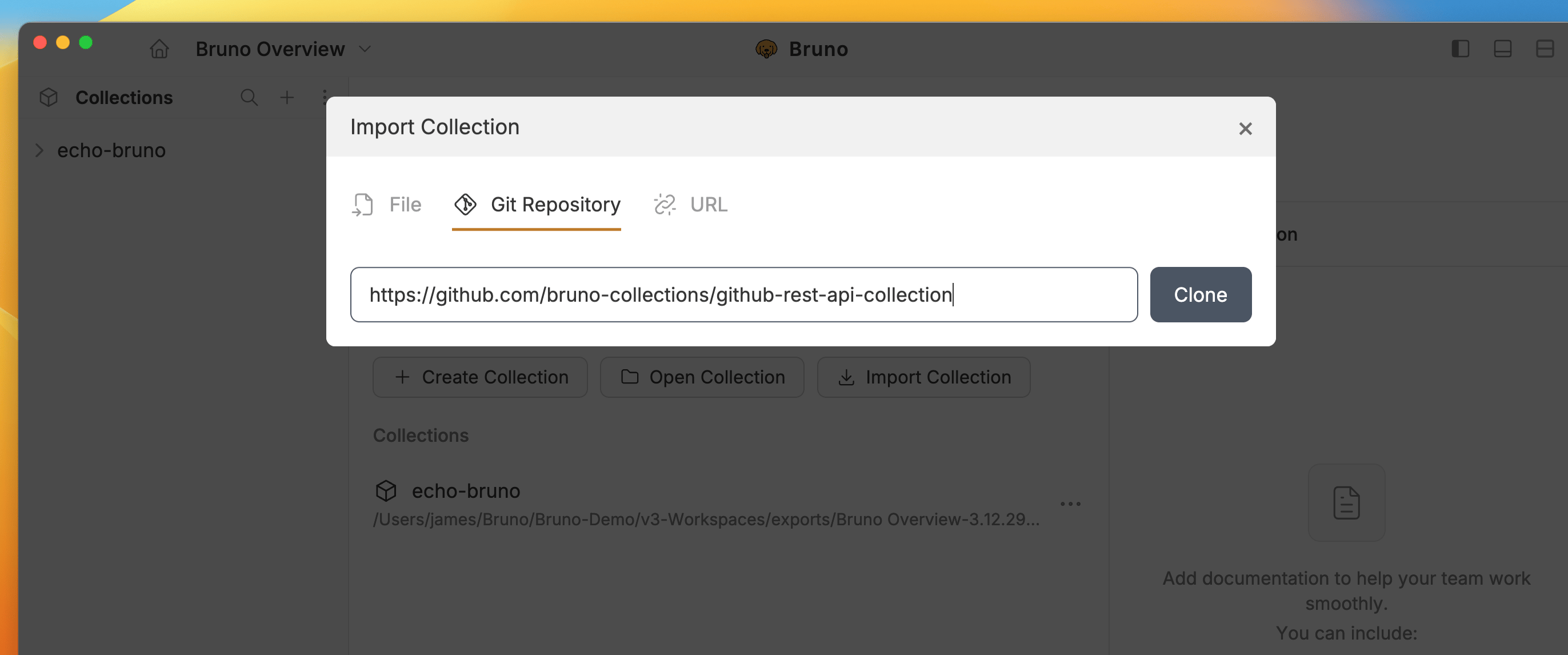
- In the Import Collection dialog, select the Git Repository tab.
-
Enter the Git repository URL and click the Clone button.
-
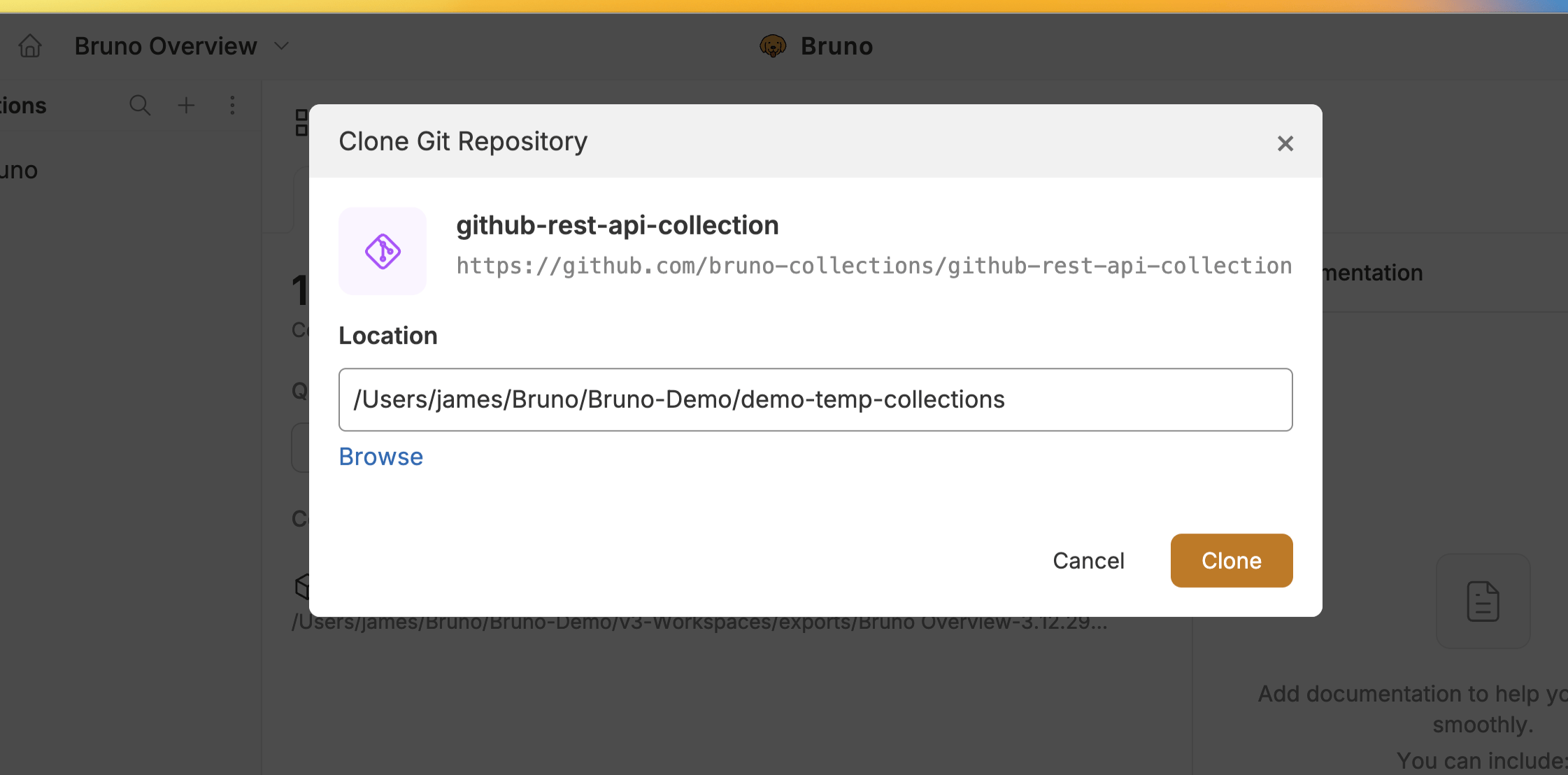
Choose a Location to clone the collection to.
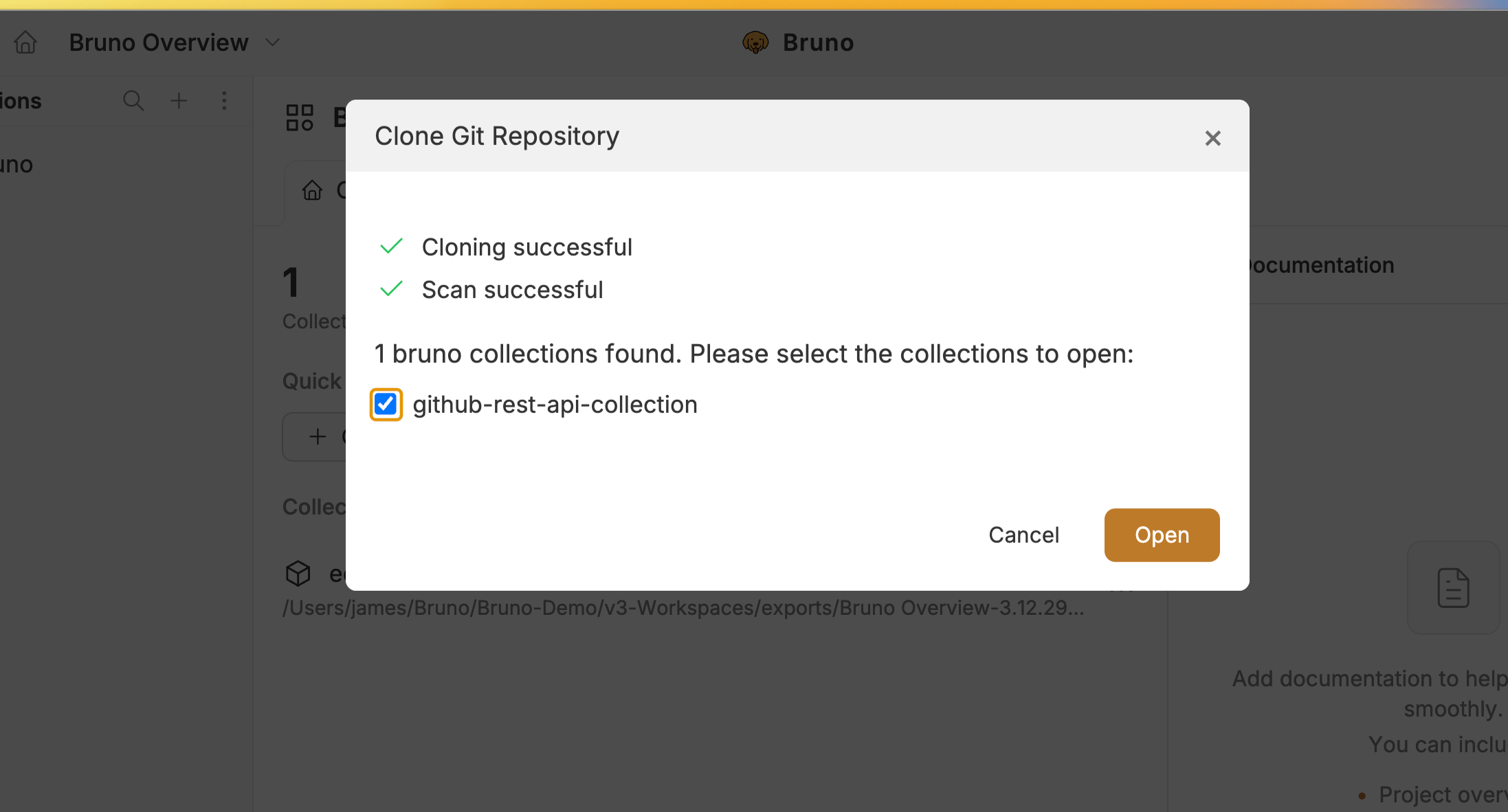
- After the cloning process completes, select the Collection you want to open and click Open.
Checking for Updates
You can check if there are new changes available in the remote repository.- Go to Git UI.
- Click the Fetch button.
- Bruno will display if there are incoming changes available.
Pulling Changes
Pull the latest changes from the remote repository to stay synchronized with your team.- Go to Git UI from top-right navbar icon.
- Click the Pull button.
- Bruno opens the Pull from other branches dialog and fetches your remotes and branches.
- Select the branch you want to pull from. Your current branch is selected by default and is tagged Current.
- If your collection has more than one remote, pick the one you want from the Remote dropdown above the branch list.
- The note at the bottom of the dialog confirms where the changes will land, such as Changes will be merged into main (current branch).
- Click Pull from selected branch.
Remote branches appear as
<remote>/<branch> e.g. origin/main. Use the Search branches… box to filter longer lists.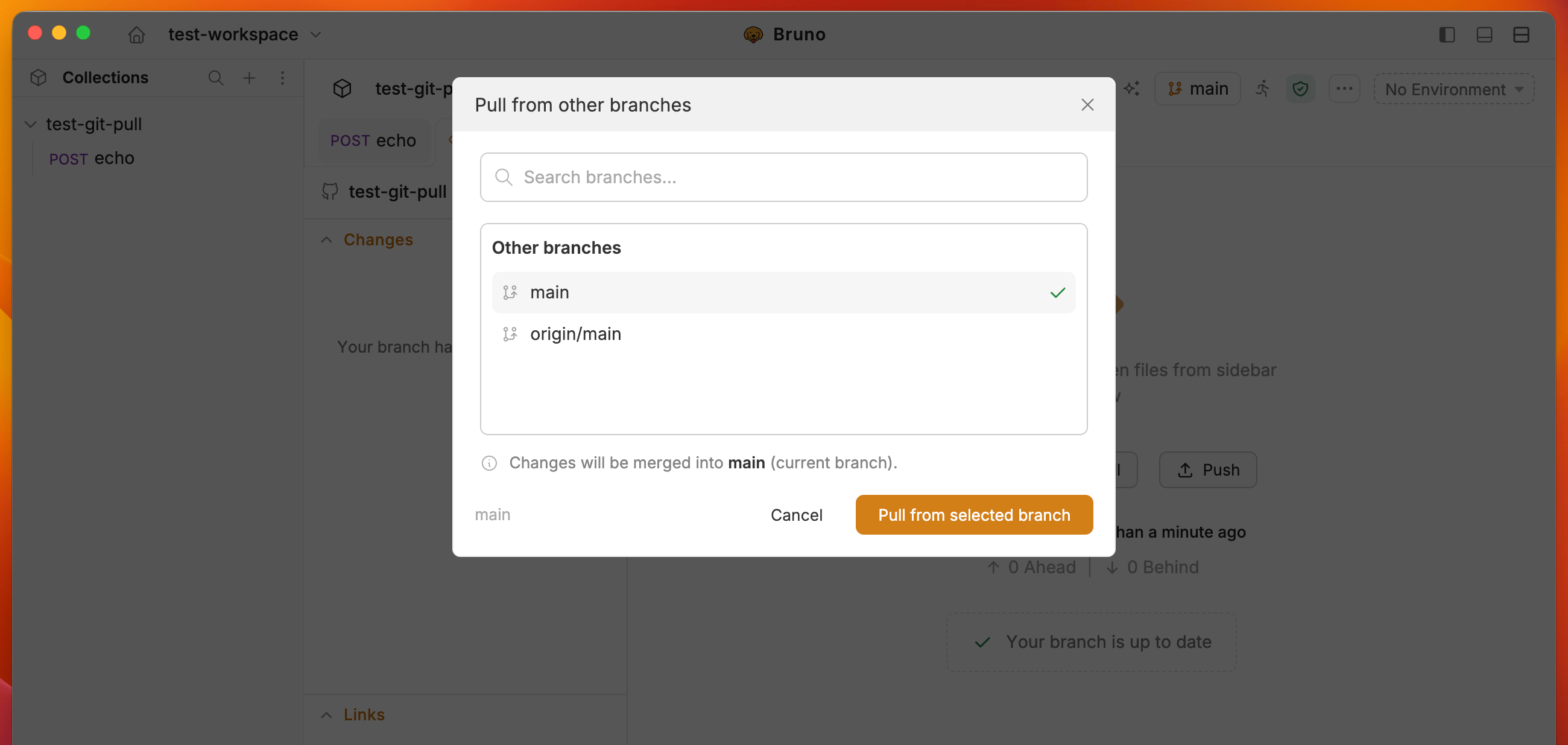
Picking a remote and a branch requires Pro or Ultimate. In the free version, Pull fetches and merges the branch your current branch already tracks, without opening the dialog.
When a Pull Fails
If the pull cannot complete, the dialog stays open and shows the Git output for the operation, and the primary button changes to Close. Close the dialog and click Pull again to retry. Retrying helps with transient failures such as a network timeout or a slow remote. For failures that need a fix first uncommitted local changes, or a branch that has diverged from the remote resolve the underlying issue before pulling again.If you have local uncommitted changes when pulling, you may be prompted to stash them first. The Stash Changes feature (Pro/Ultimate) helps manage this workflow.